Mobile Development
Testing the Client on a Mobile Device
If you have made changes to the client that could affect the mobile experience, it is a good idea to test them on a real device. Such changes should ideally be tested with at least current versions of iOS Safari and Chrome for Android.
Make sure your development system and mobile device are on the same local network.
Configure h to allow incoming connections from other systems by editing
conf/development-app.iniand changing thehostsetting fromlocalhostto0.0.0.0. You will need to restart the h dev server after making this change.Get the hostname of your development system (
<HOSTNAME>in the steps below). You can do this using thehostnameterminal command on macOS/Linux.On macOS, this will typically be something like “Bobs-MacBookPro.local”.
Tip
If the output of
hostnamedoes not include a.homeor.localsuffix, you may need to append.localto get a hostname that is accessible from other devices on the network. If you have problems using the hostname, try using the IP address instead.On your mobile device, go to a page which has the client embedded such as
http://<HOSTNAME>:3000orhttp://<HOSTNAME>:5000/docs/help.These URLs will also work on your development system.
Troubleshooting
If logging into the client does not work when the client is accessed via a non-localhost URL, make sure the “Redirect URL” for the Hypothesis client’s “OAuth client” (managed at http://localhost:5000/admin/oauthclients) is set to
{current_scheme}://{current_host}:5000: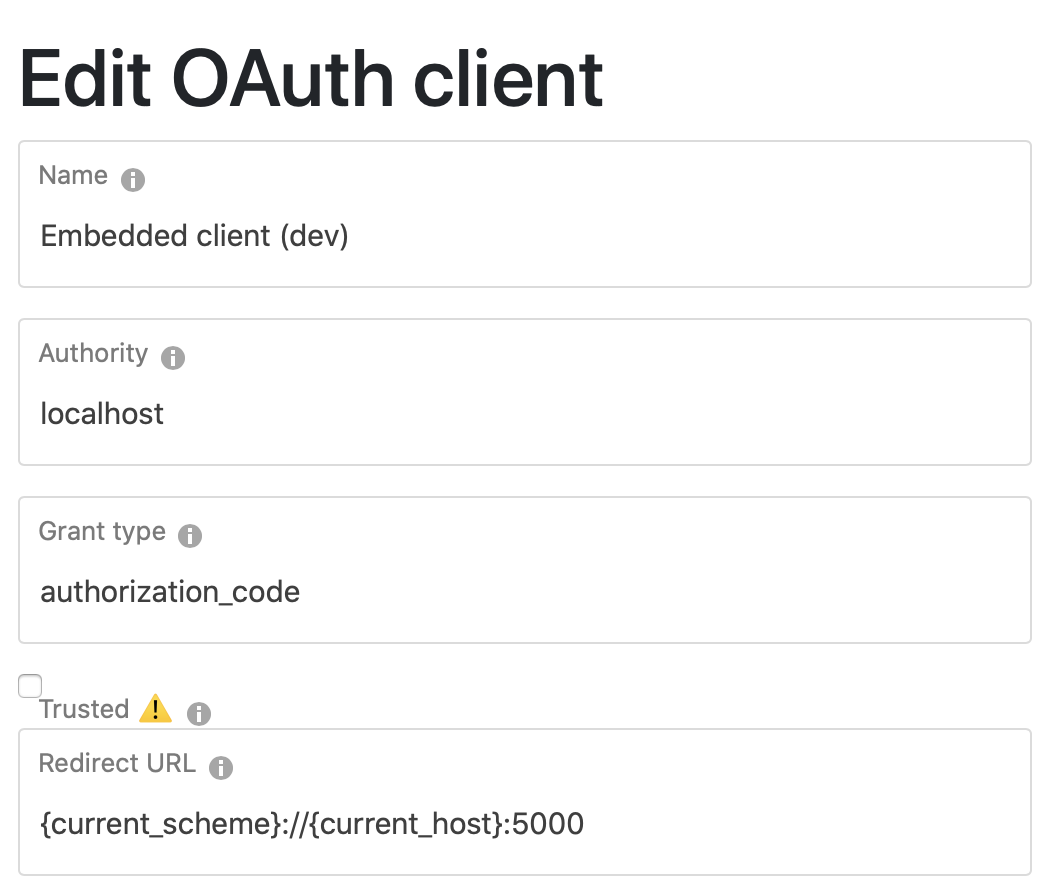
Make sure that you are not overriding the
CLIENT_URLenv var in your h environment orSIDEBAR_APP_URLenv var in your client dev environment